Remove Background From Video TikTok
Straight into a vertical timeline
Upload the clip as you shot it, upright, and get it back at the same frame size and frame rate with the background gone.
Three free frame previews a day, no sign-in needed 2 credits per second of video No watermark on paid downloads See pricing
Upload the vertical clip
Try an example
How the edge holds on a face-and-shoulders clip
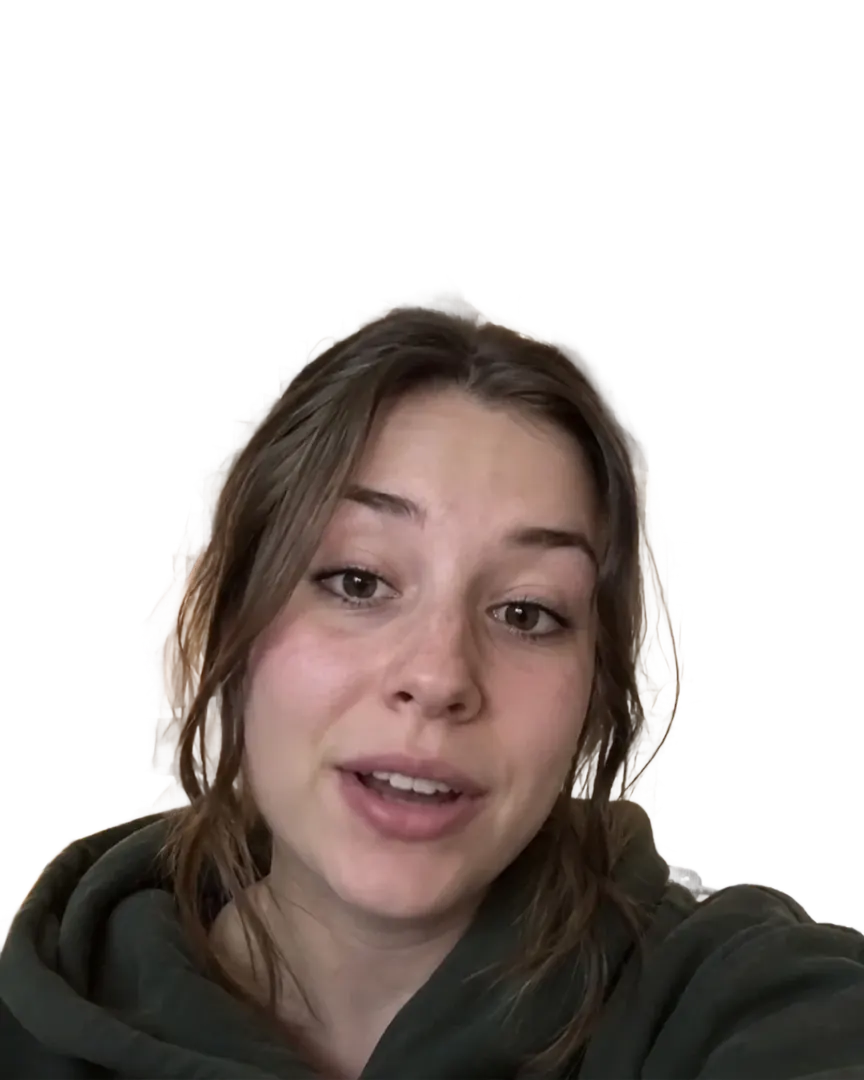
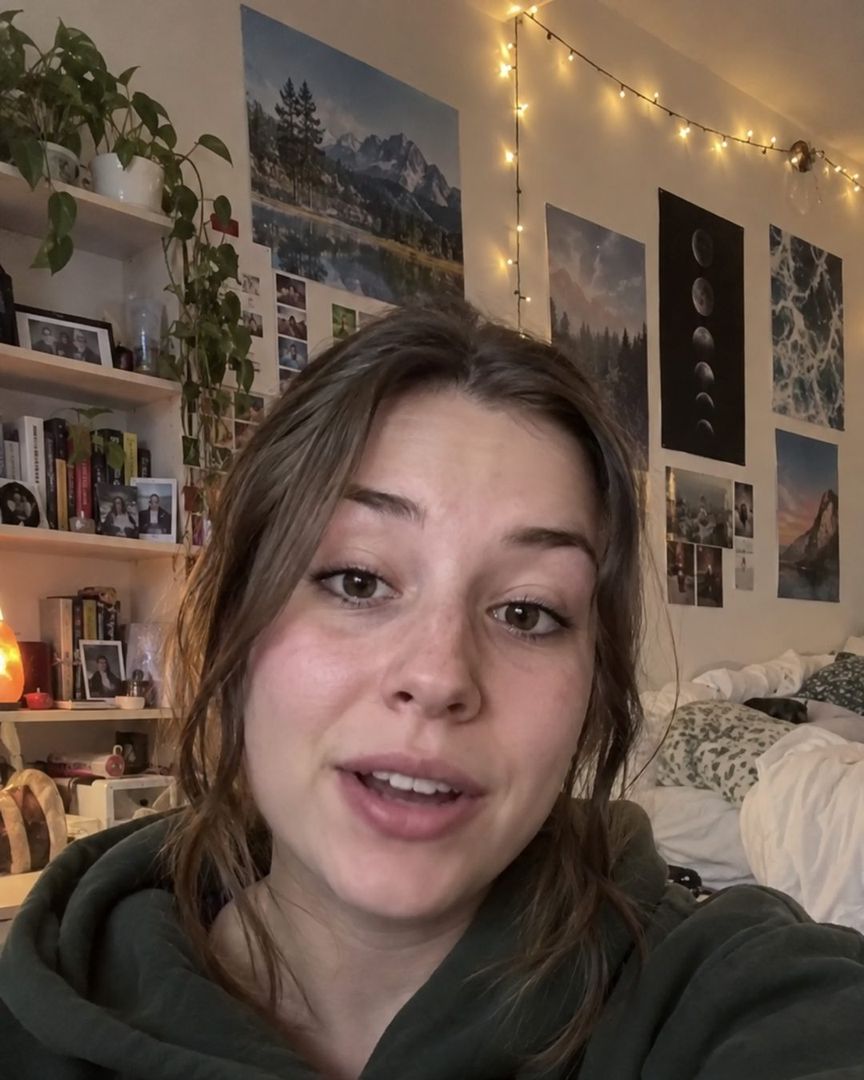
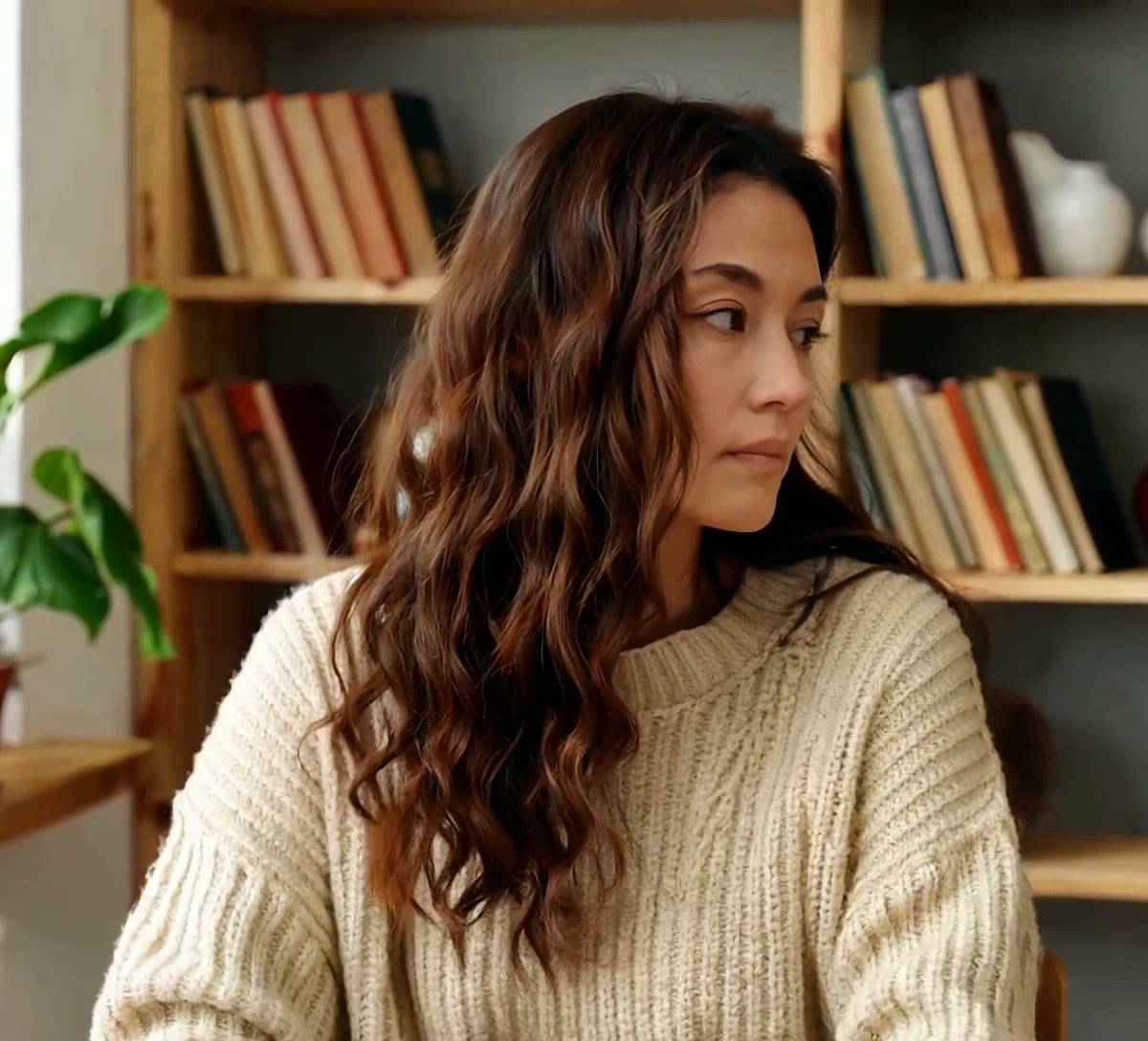
The original clip and its cut-out play in sync under one divider. Drag it across, then compare the stills below.
AI-generated sample clip. The cut-out is real, unedited output from the People model.
Download this example (WebM with alpha)Still frames
Vertical
Free frame preview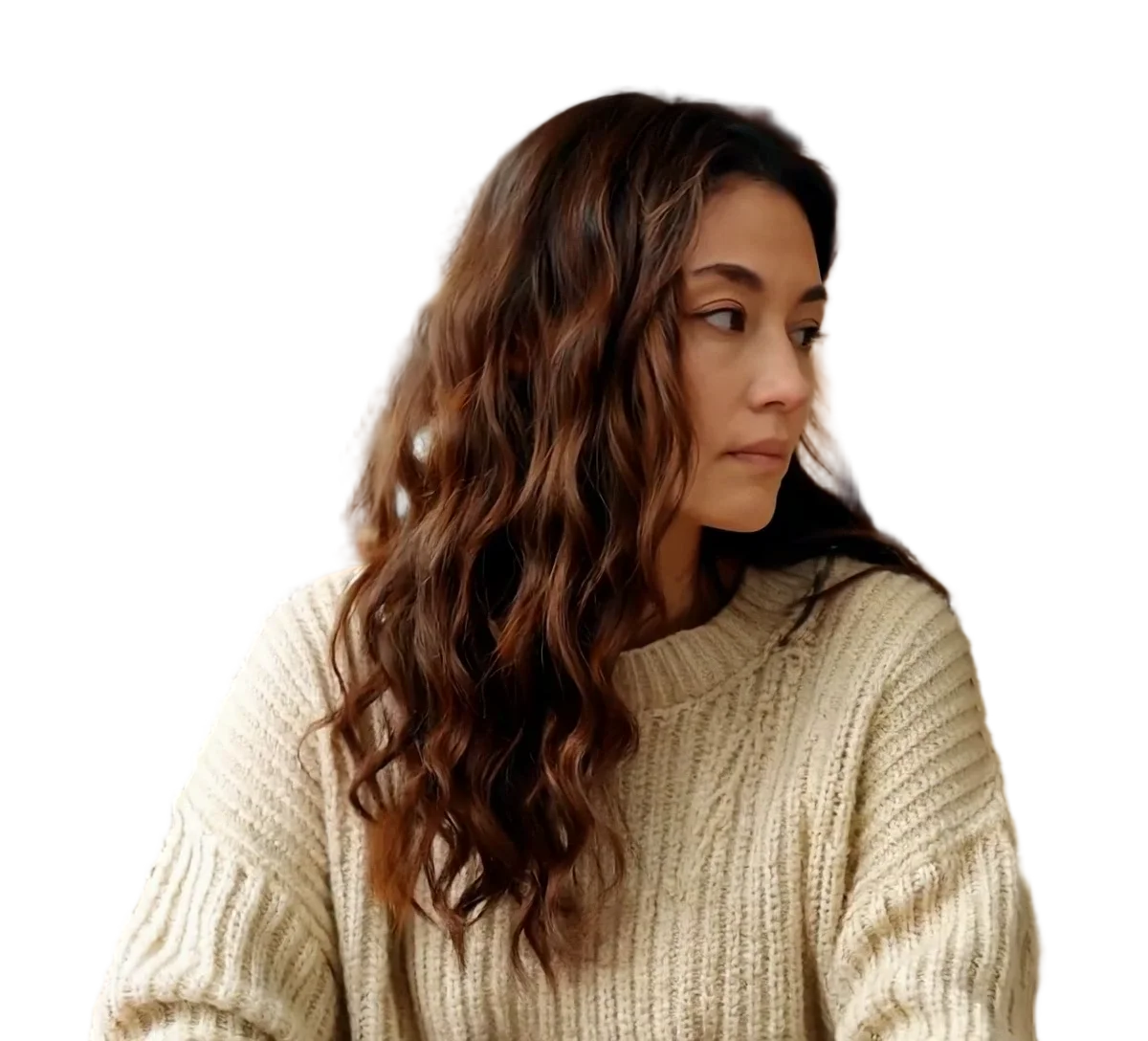
Person
Video model output

Pet
Video model output
How to remove background from video TikTok clips
Upload the upright clip, pick the file your editor imports, and drop the result onto your vertical timeline.
1Upload your clip
Click Upload video or drop an MP4, MOV or WebM up to 30 seconds and 100 MB.
2Choose subject and format
Pick People or Objects & pets and one of four downloads. The credit cost shows before you start.
3Download the result
About 5 minutes for a 30-second clip. You can leave the page while it runs.
Pick the file for where it is going




Vertical frames, editors and what to hand over
Why vertical needs no special handling
Nothing here is resized. The download carries the frame size, frame rate and duration of what you uploaded, so a 1080x1920 clip at 30 fps comes back 1080x1920 at 30 fps and lands on a vertical timeline without a scale or a crop.
What comes back from a vertical clip
Measured on an upright 1080x1920 clip, which is the shape most of this footage is shot in.
- Frame size and frame rate
- 1080x1920 at 30 fps
- Unchanged in every download, duration included
- Green screen MP4
- 12 to 15 MB
- H.264 video on #00FF00 green
- Transparent WebM
- About 23 MB
- VP9 video with an alpha channel
- Wait for the 30-second clip
- About 5 minutes
- Provider runs: 272 s and 300 s, one per subject mode
File sizes are locally measured, September 2026: the same ffmpeg arguments the container runs, against one 1080x1920 clip at 30 fps, 30 seconds of it unless a tile says otherwise. Wait times are from provider runs. These are what that clip produced, not a figure for yours.
Which download to hand to which editor
Every cell here is either a vendor document or an admission that we found none. The first two rows are the ones to read if you edit on a phone.
Scroll the table sideways to see every column.
| Download | Transparency in the file | Chrome and Firefox | Safari | Final Cut Pro | DaVinci Resolve 20 | OBS Studio | Size, 30 s of 1080x1920 |
|---|---|---|---|---|---|---|---|
| Green screen MP4 (H.264) | No: flat #00FF00 to key out | Not checked | Not checked | H.264 listed | Not checked | .mp4 listed as a media file | 12 to 15 MB |
| Transparent WebM (VP9) | Yes | Plays with transparency | Plays VP9, without transparency | WebM is not in the import list | No WebM container in the list | .webm listed as a media file; alpha not checked | About 23 MB |
| ProRes 4444 MOV | Yes | Not checked | Not checked | Apple ProRes, all versions, listed | ProRes 4444 MOV listed | .mov listed as a media file; alpha not checked | About 975 MB |
| Alpha mask MP4 | No: a separate black and white matte | Not checked | Not checked | Not checked | Not checked | .mp4 listed as a media file | Not measured |
Not checked means we found no vendor document for that cell, not that it fails. Premiere Pro, After Effects and CapCut are left out because we could not check them against Adobe or CapCut documentation.
Sources
- Final Cut Pro: Apple Support, Final Cut Pro import formats
- OBS Studio: OBS Studio knowledge base, Media Sources
- Chrome, Firefox and Safari: Jake Archibald, video with transparency on the web (2024)
- DaVinci Resolve 20: Blackmagic Design, DaVinci Resolve supported codec list, July 2025 (PDF)
What we cannot tell you about phone editors
The table above has no column for the editors most short-form video is actually cut in, and that is deliberate. We could not read Adobe's import-format pages, and the popular phone editors publish no import-format list we could check, so any claim we made about them would be a guess with a source-shaped sentence around it.
What follows from that is a practical default rather than a shrug: take the green screen MP4. H.264 in an MP4 is the one combination every editor that opens video at all can open, and keying flat green is a feature phone editors have had for years. If your editor does read transparency, the transparent WebM saves you the keying step and keeps softer edges around hair.
What to upload, and what to trim first
Up to 30 seconds and 100 MB, as MP4, MOV, WebM or an animated GIF. Longer clips are not shortened for you, so trim to the part with the subject in it before uploading rather than after: you are charged 2 credits per second of what you send, and a 40-second clip trimmed to the 12 seconds you will use costs a third as much.
Shoot the subject away from the backdrop where you can, and keep their clothes a different colour from the wall. The general run-through of uploading, previewing and downloading is on the home page; this page is only the vertical part of it.
Previews are processed at up to 720p. Paid downloads keep the original frame size. Uploads are deleted after 24 hours, finished downloads after 7 days.
Frequently asked questions
Upload the clip upright, exactly as you shot it, choose People or Objects & pets, and pick the download your editor takes: green screen MP4 for a phone editor, transparent WebM if it reads an alpha channel. The result keeps your 1080x1920 frame and frame rate, so it goes onto a vertical timeline without scaling. Clips are limited to 30 seconds and 100 MB, and the cost is 2 credits per second of video, shown before you start.
It comes back at whatever you sent. Our test clip was 1080x1920 at 30 fps and every paid download was 1080x1920 at 30 fps, with the same duration. Nothing is scaled, cropped or padded to a standard vertical size, so a clip shot at 720x1280 stays 720x1280. The free previews are the exception: they are processed at up to 720p on the long side, because that is what keeps them free.
The green screen MP4, unless you know your editor reads transparency. H.264 in an MP4 is the most widely readable video file there is, and keying out flat green is a standard feature. We are recommending it on that basis rather than on a tested import list: we could not verify any phone editor against its own documentation, which is why none of them appears in the compatibility table on this page.
Not in one job. The limit is 30 seconds and 100 MB per upload, and there is no long-video mode. Trim the clip to the part you need before uploading, or split it into pieces of 30 seconds or less, process each one and join them in your editor. Trimming first also costs less, since the charge is 2 credits per second of what you upload rather than of what you keep.
Yes, on every video download: transparent WebM, ProRes 4444 MOV, green screen MP4, a replaced background or a blurred one all carry your original audio through untouched. The one exception is the transparent GIF, because the GIF format has no audio track at all. If you are cutting to a track in your editor anyway, the audio still matters for lining the clip up.
Yes, in the phone browser, with nothing to install. Tap to upload a clip of up to 30 seconds, sign in and process it, then download the file and open it in your editor. One thing to expect: a phone photo gallery may not render transparency, so a transparent WebM can preview as a black rectangle there even though its alpha channel is intact. That is the gallery, not the file.
Because a file is reusable and an in-app effect is not. A cut-out you download can be dropped into several edits, composited over footage, or kept as a transparent WebM with a real alpha channel rather than baked onto one background. We make no claim about what any particular app's built-in tools do, since we have not verified them, and if an in-app effect gives you the result you want it is the cheaper path.
It still works, and it still comes back in its own shape. A 1920x1080 landscape clip returns as 1920x1080, because the frame size is copied from your upload rather than chosen for you. If you need a vertical version of landscape footage, crop or reframe it in your editor after the background is removed, so you are cropping a cut-out rather than cropping before the model has seen the whole subject.