Green Screen Video Background Remover
Chroma key green, no studio needed
Upload ordinary footage and download the same clip with the subject standing on pure #00FF00 green.
Three free frame previews a day, no sign-in needed 2 credits per second of video No watermark on paid downloads See pricing
Put your clip on green
Try an example
How to make a green screen video
Choose Green screen MP4 and the subject comes back on flat #00FF00 green, ready for an editor's chroma key.
1Upload your clip
Click Upload video or drop an MP4, MOV or WebM up to 30 seconds and 100 MB.
2Choose subject and format
Pick People or Objects & pets and one of four downloads. The credit cost shows before you start.
3Download the result
About 5 minutes for a 30-second clip. You can leave the page while it runs.
Pick the file for where it is going




The cut-out the green gets painted behind
The original clip and its cut-out play in sync under one divider. Drag it across, then compare the stills below.
AI-generated sample clip. The cut-out is real, unedited output from the People model.
Download this example (WebM with alpha)Still frames
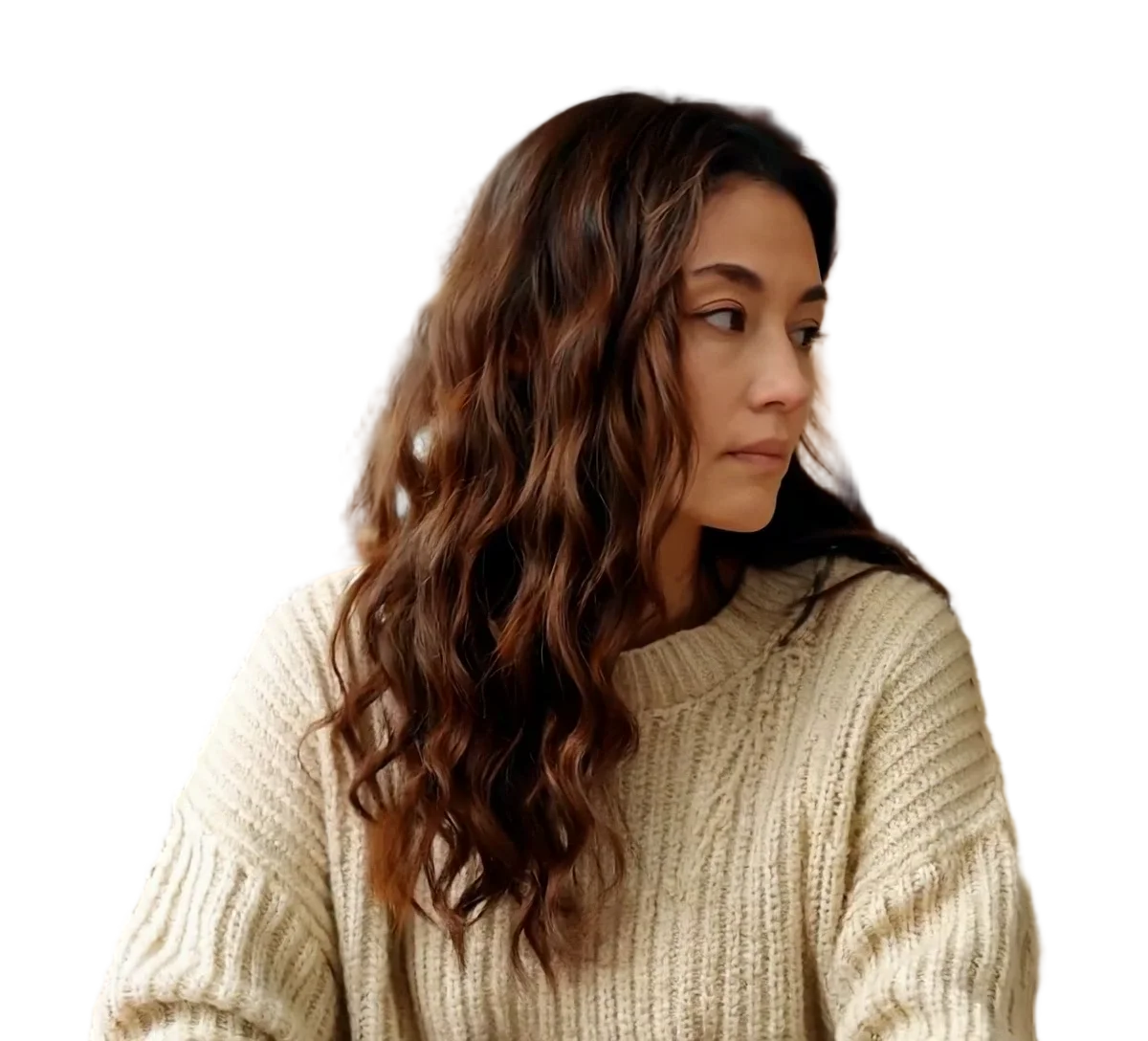

Person
Video model output

Product
Video model output

Pet
Video model output
Green screen video background remover details
Put a subject on green, or take the green away
Two jobs share this page. Turn ordinary footage into an MP4 on flat #00FF00 green for an editor's chroma key, or upload footage you already shot on green and export it transparent, with no keying at all.
What the green screen video background remover outputs
Every green screen MP4 puts the subject on #00FF00, which is red 0, green 255 and blue 0, in both People and Objects & pets mode. The background is filled by our own encoding step, not lit on a set, so it is one flat value behind the subject in every frame.
The file is an H.264 MP4, a format with no alpha channel, which is why the background is green instead of transparent. It keeps the frame size, frame rate and sound of your upload, and our 30-second 1080x1920 test came out at 12 to 15 MB.
Green MP4 or a transparent file
Scroll the table sideways to see every column.
| Green screen MP4 | Transparent WebM | ProRes 4444 MOV | |
|---|---|---|---|
| Background | Flat #00FF00 | Transparent (alpha channel) | Transparent (alpha channel) |
| Needs a chroma key in the editor | Yes | No | No |
| Size, 30 s of 1080x1920 | 12 to 15 MB | About 23 MB | About 975 MB |
| Soft edges and fine hair | Depend on your key settings | Kept as the model made them | Kept as the model made them |
Where each file opens
The green MP4 is the one file here with no transparency to lose. Where the other two open, checked against vendor documents:
Scroll the table sideways to see every column.
| Download | Transparency in the file | Chrome and Firefox | Safari | Final Cut Pro | DaVinci Resolve 20 | OBS Studio | Size, 30 s of 1080x1920 |
|---|---|---|---|---|---|---|---|
| Green screen MP4 (H.264) | No: flat #00FF00 to key out | Not checked | Not checked | H.264 listed | Not checked | .mp4 listed as a media file | 12 to 15 MB |
| ProRes 4444 MOV | Yes | Not checked | Not checked | Apple ProRes, all versions, listed | ProRes 4444 MOV listed | .mov listed as a media file; alpha not checked | About 975 MB |
| Transparent WebM (VP9) | Yes | Plays with transparency | Plays VP9, without transparency | WebM is not in the import list | No WebM container in the list | .webm listed as a media file; alpha not checked | About 23 MB |
Not checked means we found no vendor document for that cell, not that it fails. Premiere Pro, After Effects and CapCut are left out because we could not check them against Adobe or CapCut documentation. Sizes: File sizes are locally measured, September 2026: the same ffmpeg arguments the container runs, against one 1080x1920 clip at 30 fps, 30 seconds of it unless a tile says otherwise. Wait times are from provider runs. These are what that clip produced, not a figure for yours.
Sources
- Final Cut Pro: Apple Support, Final Cut Pro import formats
- OBS Studio: OBS Studio knowledge base, Media Sources
- DaVinci Resolve 20: Blackmagic Design, DaVinci Resolve supported codec list, July 2025 (PDF)
- Chrome, Firefox and Safari: Jake Archibald, video with transparency on the web (2024)
Already shot on a green screen?
That is the opposite job from the one above, and it has its own page: remove green screen from video covers what actually breaks a colour key on real footage -- spill, wrinkles, uneven light -- and why this model does not need one.
Keying the MP4 in your editor
Put the MP4 on a track above your new background, apply your editor's chroma key or green screen keyer, and set the key colour to 00FF00 or sample it with the eyedropper. Because the background is one flat value rather than a lit sheet, start from the keyer's default strength and raise it only if a green fringe remains.
If your editor reads alpha channels, the transparent WebM or ProRes 4444 MOV skips this step.
Previews are processed at up to 720p. Paid downloads keep the original frame size. Uploads are deleted after 24 hours, finished downloads after 7 days.
Frequently asked questions
Yes, but that is answered in full on remove green screen from video: the model is not a colour key, so it separates the subject from a real backdrop without a clean shade, even with spill, wrinkles or uneven light on the sheet.
Upload the clip as it is, choose People or Objects & pets, and keep the output on Green screen MP4, which this page selects for you. The model removes the original background on every frame, and our encoder places the subject on #00FF00 green, keeping the frame size, frame rate and sound of your clip. A 30-second clip takes about 5 minutes.
#00FF00, meaning red 0, green 255 and blue 0, in both People and Objects & pets mode. The background is filled by our own encoding step rather than lit on a set, so it is one flat value across the whole frame. Type 00FF00 as the key colour in your editor, or sample it with the eyedropper.
Only for the green screen MP4. It is an H.264 file, which has no alpha channel, so your editor has to key the green out, and a flat #00FF00 background gives the keyer one exact colour to remove. If your editor reads alpha channels, choose transparent WebM or ProRes 4444 MOV instead and skip keying altogether.
A chroma key removes pixels by colour, so it also removes anything in the shot close to that colour, such as green clothing, and it needs an evenly lit backdrop to work. This tool separates the subject from the background without looking for one colour, so it works on footage with no backdrop at all. You can still key its green MP4 afterwards if your editor needs that.
Use the green screen MP4 when your editor imports only ordinary video and has a chroma key. Use ProRes 4444 MOV for editors that read alpha: Apple lists ProRes for Final Cut Pro, and Blackmagic lists ProRes 4444 MOV for DaVinci Resolve 20. Use transparent WebM for web pages. Size differs a lot: 12 to 15 MB for the MP4 against about 975 MB for the MOV on a 30-second 1080x1920 clip.
You get up to three free watermarked frame previews a day with no account at all. After you sign in you get up to 20 frame previews a day and one free 5-second video preview a day. Previews are watermarked and processed at up to 720p, and the 5-second one uses the model version for the subject you chose. A full green screen MP4 costs 2 credits per second of video, the cost is shown before you start, and it downloads without a watermark at your original frame size.
Yes. An animated GIF is accepted as a source under the same limits as a video, 30 seconds and 100 MB, and it is converted to H.264 before the model sees it, so it runs the ordinary path. Choose whichever output you need from it: a green screen MP4, a transparent file, or a transparent GIF if the result has to stay a GIF. A GIF that reports a single frame is refused, because there is nothing to animate.