Remove Background From Video
Remove the background from any video
Preview a cut-out frame seconds after upload. A 30-second video takes about 5 minutes.
Three free frame previews a day, no sign-in needed 2 credits per second of video No watermark on paid downloads See pricing
Video background remover
Try an example
How to remove background from video
Upload a clip up to 30 seconds and get every frame back with the background removed, at the frame size, frame rate and sound of the original.
1Upload your clip
Click Upload video or drop an MP4, MOV or WebM up to 30 seconds and 100 MB.
2Choose subject and format
Pick People or Objects & pets and one of four downloads. The credit cost shows before you start.
3Download the result
About 5 minutes for a 30-second clip. You can leave the page while it runs.
Pick the file for where it is going




See it on a moving clip
The original clip and its cut-out play in sync under one divider. Drag it across, then compare the stills below.
AI-generated sample clip. The cut-out is real, unedited output from the People model.
Download this example (WebM with alpha)Still frames
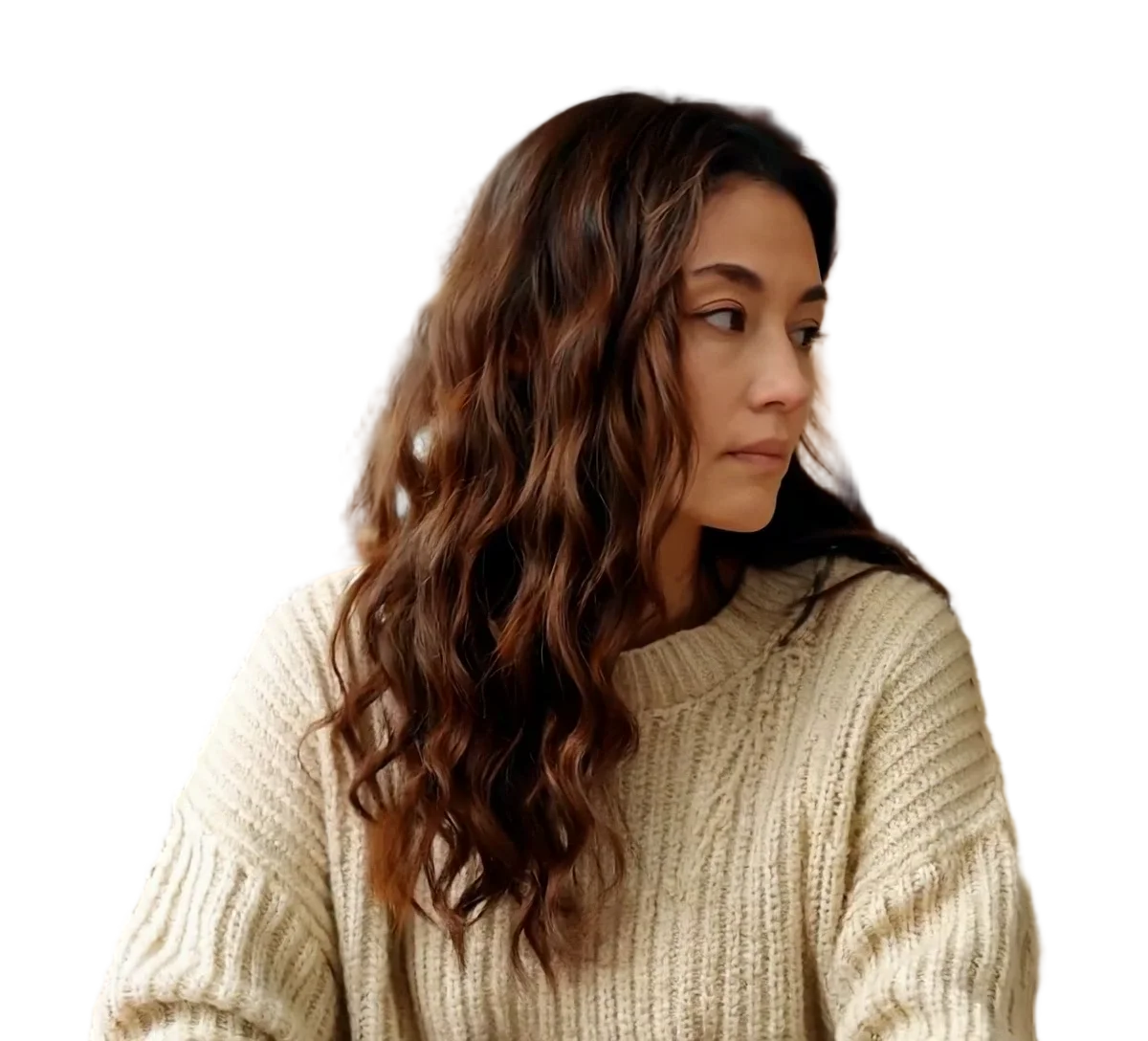

Person
Video model output

Pet
Video model output

Product
Video model output
Formats, timing and limits in detail
Which download keeps the transparency
Of the four downloads below, only two carry transparency inside the file. H.264 MP4 has no alpha channel, so the green screen MP4 and the alpha mask exist for apps that cannot read one.
Scroll the table sideways to see every column.
| Download | Transparency in the file | Chrome and Firefox | Safari | Final Cut Pro | DaVinci Resolve 20 | OBS Studio | Size, 30 s of 1080x1920 |
|---|---|---|---|---|---|---|---|
| Transparent WebM (VP9) | Yes | Plays with transparency | Plays VP9, without transparency | WebM is not in the import list | No WebM container in the list | .webm listed as a media file; alpha not checked | About 23 MB |
| ProRes 4444 MOV | Yes | Not checked | Not checked | Apple ProRes, all versions, listed | ProRes 4444 MOV listed | .mov listed as a media file; alpha not checked | About 975 MB |
| Green screen MP4 (H.264) | No: flat #00FF00 to key out | Not checked | Not checked | H.264 listed | Not checked | .mp4 listed as a media file | 12 to 15 MB |
| Alpha mask MP4 | No: a separate black and white matte | Not checked | Not checked | Not checked | Not checked | .mp4 listed as a media file | Not measured |
Not checked means we found no vendor document for that cell, not that it fails. Premiere Pro, After Effects and CapCut are left out because we could not check them against Adobe or CapCut documentation.
Sources
- Chrome, Firefox and Safari: Jake Archibald, video with transparency on the web (2024)
- Final Cut Pro: Apple Support, Final Cut Pro import formats
- DaVinci Resolve 20: Blackmagic Design, DaVinci Resolve supported codec list, July 2025 (PDF)
- OBS Studio: OBS Studio knowledge base, Media Sources
How long it takes and how big the files are
Both subject modes run BiRefNet, so the wait is in the same range whichever one you pick. The file size depends on the format.
- Wait for the 30-second clip
- About 5 minutes
- Provider runs: 272 s and 300 s, one per subject mode
- Transparent WebM
- About 23 MB
- VP9 video with an alpha channel
- ProRes 4444 MOV
- About 975 MB
- About 260 Mbit/s, alpha channel included
- Green screen MP4
- 12 to 15 MB
- H.264 video on #00FF00 green
- Frame size and frame rate
- 1080x1920 at 30 fps
- Unchanged in every download, duration included
File sizes are locally measured, September 2026: the same ffmpeg arguments the container runs, against one 1080x1920 clip at 30 fps, 30 seconds of it unless a tile says otherwise. Wait times are from provider runs. These are what that clip produced, not a figure for yours.
People or Objects & pets
Both modes run BiRefNet. People uses a version tuned for people, and Objects & pets uses the general version for products, animals and anything else with a clear subject. Both cost 2 credits per second, so choose by what is in the shot, not by price.
The free 5-second preview runs the version for the mode you picked, so it shows how your own subject comes out before you spend credits. It is processed at up to 720p; the paid run keeps your original frame size.
Where the edge is not perfect
These are from our own demo clips, cut out by the same models the tool runs, and you can see them in the examples above:
- The finest flyaway hair is softened, and a small gap inside the hair can show what is behind it.
- A fast-moving thin part, such as the tip of a wagging tail, can break into dark jagged streaks.
- Steam and smoke are removed with the background, along with anything else you can see through.
- A hard shadow under an object can be kept as part of the object.
- The model can change its mind about where an object ends: a stand or board can be kept in some frames and dropped in others, and a part turning out of frame can come back only partly cut out.
Run the free 5-second preview on your own clip before you spend credits on the whole thing.
What it will not do
Knowing these before you upload saves a wasted job:
- Take clips over 30 seconds or 100 MB. Trim or split them first.
- Let you keep or remove extra areas with a brush. The model decides what the subject is.
- Work on a live camera feed. It processes uploaded files.
- Clean up the sound. The audio is copied into the download as it was.
For a specific job, go to transparent WebM for web pages, ProRes 4444 MOV for editors, green screen MP4, a transparent GIF, a new background or a blurred one.
Previews are processed at up to 720p. Paid downloads keep the original frame size. Uploads are deleted after 24 hours, finished downloads after 7 days.
Frequently asked questions
You can check the result without paying, and your first check needs no account at all: signed out, you get up to three free watermarked frame previews a day. After you sign in you get up to 20 frame previews a day and one 5-second video preview a day, all watermarked, and the video preview uses the model version for the subject you picked. Previews are processed at up to 720p. A full clip costs 2 credits per second of video, the cost is shown before you start, that download has no watermark and it keeps your original frame size.
Sign in and upload an MP4, MOV, WebM or animated GIF of up to 30 seconds and 100 MB. Choose People or Objects & pets, then pick a download: transparent WebM, ProRes 4444 MOV, green screen MP4, an alpha mask, a transparent GIF, a replaced background or a blurred one. Press Remove background. A 30-second clip took about 5 minutes in our test, and you can close the page while it runs; the result waits in your dashboard.
Yes, on every download except one. The transparent WebM, ProRes 4444 MOV, green screen MP4, alpha mask, a replaced background and a blurred one all keep the sound track of the clip you upload, unfiltered, so music and room noise stay as they were. The exception is the transparent GIF, and no setting changes it: the GIF format has no audio track to carry sound in.
The same as the clip you upload. Our 1080x1920 test clip at 30 fps came back at 1080x1920 and 30 fps, with the same duration, in every format. Nothing is upscaled or cropped. The free previews are the one exception: both the frame preview and the 5-second video preview are processed at up to 720p on the long side, because the model bills by processing time and that is what keeps them free. Paid downloads keep the original frame size. For the least compression choose ProRes 4444 MOV; transparent WebM is compressed for web pages.
ProRes 4444 MOV. Apple's Final Cut Pro import formats page lists Apple ProRes in all versions, and Blackmagic's DaVinci Resolve 20 codec list includes ProRes 4444 in a MOV. Neither list includes WebM, so a transparent WebM is the wrong file for those two editors. We have not checked Premiere Pro, After Effects or CapCut against their makers' documentation.
The player is not reading the alpha channel, so it fills the see-through area with a solid colour. Safari is one documented case: it plays VP9 WebM but not its transparency. The transparency is still in the file. Check a WebM in Chrome or Firefox, and import a MOV into an editor that reads ProRes 4444. A plain MP4 cannot be transparent at all; see make video background transparent.
Yes, in the phone browser, with no app to install. Tap Upload video, pick a clip of up to 30 seconds and 100 MB, and sign in to process it. Think about where the file will play afterwards: a phone photo gallery may not show transparency, so a transparent file can look black there even though its alpha channel is intact.
Yes. The model separates the subject from whatever is behind it, a green screen or a black wall included, so no colour has to be keyed out. Keep the subject a different colour from the backdrop where you can. If you need the opposite, a flat green behind your subject for an editor's chroma key, choose green screen MP4.
Up to 30 seconds and 100 MB per upload, as MP4, MOV, WebM or an animated GIF. There is no long-video mode. For a longer clip, trim it to the part you need, or split it into parts of 30 seconds or less and process each one. The length is measured on our server and the credit cost is based on it, rounded up to the whole second.
Uploads are deleted after 24 hours, finished downloads after 7 days. Both halves are lifecycle rules on the storage bucket itself rather than a cleanup job somebody has to remember to run, so the deletion happens whether or not anything else works that week. Download the result before the seventh day; after that the job is gone and you would have to process the clip again. The free previews are stored and deleted the same way, and a clip we refuse for being too long or unreadable is deleted straight away rather than waiting for the rule. Previews are processed at up to 720p. Paid downloads keep the original frame size.
Both modes run BiRefNet. People uses a version of the model tuned for people, and Objects & pets uses the general version, for products, animals and other subjects. The price is the same, 2 credits per second, and so are the formats. Choose by what is in the shot. The free 5-second preview runs the version for the mode you pick, so it shows how that version handles your clip.