Blur Video Background
Keep the room out of the shot
Upload a clip, pick how much of the room to lose, and download it with the subject still sharp.
Three free frame previews a day, no sign-in needed 2 credits per second of video No watermark on paid downloads See pricing
Choose how hard to blur
Try an example
Strengths, edges and the room behind you
Blur rather than remove
Nothing is cut away here. The same matte that would make the background transparent is used to hold the subject sharp while everything behind it is blurred, so the shot keeps its depth and the room stops being readable.
What light, medium and strong actually are
Three Gaussian blurs, in pixels. They are published because a strength name on its own tells you nothing, and because the number is absolute rather than a share of your frame.
Scroll the table sideways to see every column.
| Strength | Sigma | Share of a 1080 px wide frame | What is left of the room |
|---|---|---|---|
| Light | 8 px | About 0.7 per cent | You can still tell what the room is |
| Medium | 16 px | About 1.5 per cent | Shapes and colour only, the default |
| Strong | 28 px | About 2.6 per cent | A wash of colour |
Because sigma is a pixel count and not a share of the frame, the same strength is a heavier blur on a smaller clip: 16 px covers 1.5 per cent of a 1080 px wide frame and 3.3 per cent of a 480 px wide one. Your download keeps the frame size you uploaded, so pick the strength for the clip you have rather than for the one on this page.
What the download is
An H.264 MP4 at your frame size, frame rate and duration, with the audio carried through unchanged.
- Blurred background MP4
- 3.51 MB
- 5 s of the 1080x1920 clip, medium strength
- Frame size and frame rate
- 1080x1920 at 30 fps
- Unchanged in every download, duration included
- Wait for the 30-second clip
- About 5 minutes
- Provider runs: 272 s and 300 s, one per subject mode
File sizes are locally measured, September 2026: the same ffmpeg arguments the container runs, against one 1080x1920 clip at 30 fps, 30 seconds of it unless a tile says otherwise. Wait times are from provider runs. These are what that clip produced, not a figure for yours.
The output that forgives a bad edge
Every cut-out has pixels it gets slightly wrong, usually around hair and motion blur. What happens to those pixels depends on which download you take. In a transparent WebM a stray background pixel sits against whatever is behind the video, so it reads as a fringe. On a replaced background it sits against a different scene entirely, which is worse.
Here it lands on a blurred copy of the background it came from. The colour is nearly right and the detail is gone anyway, so the mistake has nothing to contrast against. This is the one output where a matte that is not quite perfect can still be finished work, which is worth knowing before you spend credits comparing formats.
A talking head in a room you would rather not show
The common reason for this is not style. It is a bedroom, an open laptop, a whiteboard with someone else's work on it, a window that says which street you are on. Medium takes a room down to shapes and colour; strong takes it to a wash.
Two limits worth knowing before you rely on it. The blur is only as good as the cut-out, so if the model loses your shoulder for a few frames, the room behind that shoulder is briefly sharp. And anything held near the subject, or passing behind them, is background: a phone screen in a raised hand is sharp because the hand is the subject.
If the room has to be gone rather than softened, replace it with a colour or a still, or take the transparent WebM and put your own scene behind it in an editor.
Previews are processed at up to 720p. Paid downloads keep the original frame size. Uploads are deleted after 24 hours, finished downloads after 7 days.
How to blur video background footage
Upload a clip, choose light, medium or strong, and download an MP4 with the subject sharp and the room behind it gone soft.
1Upload your clip
Click Upload video or drop an MP4, MOV or WebM up to 30 seconds and 100 MB.
2Choose subject and format
Pick People or Objects & pets and one of four downloads. The credit cost shows before you start.
3Download the result
About 5 minutes for a 30-second clip. You can leave the page while it runs.
Pick the file for where it is going




Where the matte is soft, and why blur forgives it
The original clip and its cut-out play in sync under one divider. Drag it across, then compare the stills below.
AI-generated sample clip. The cut-out is real, unedited output from the People model.
Download this example (WebM with alpha)Still frames
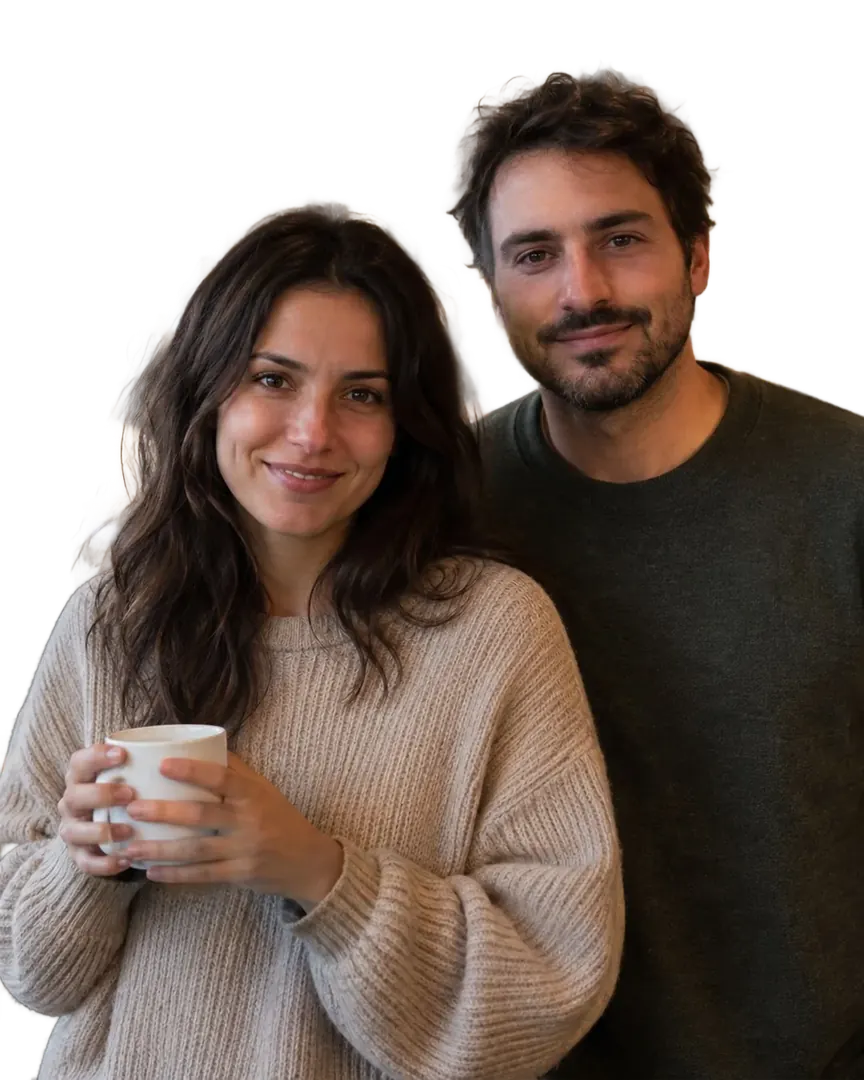

Two people
Free frame preview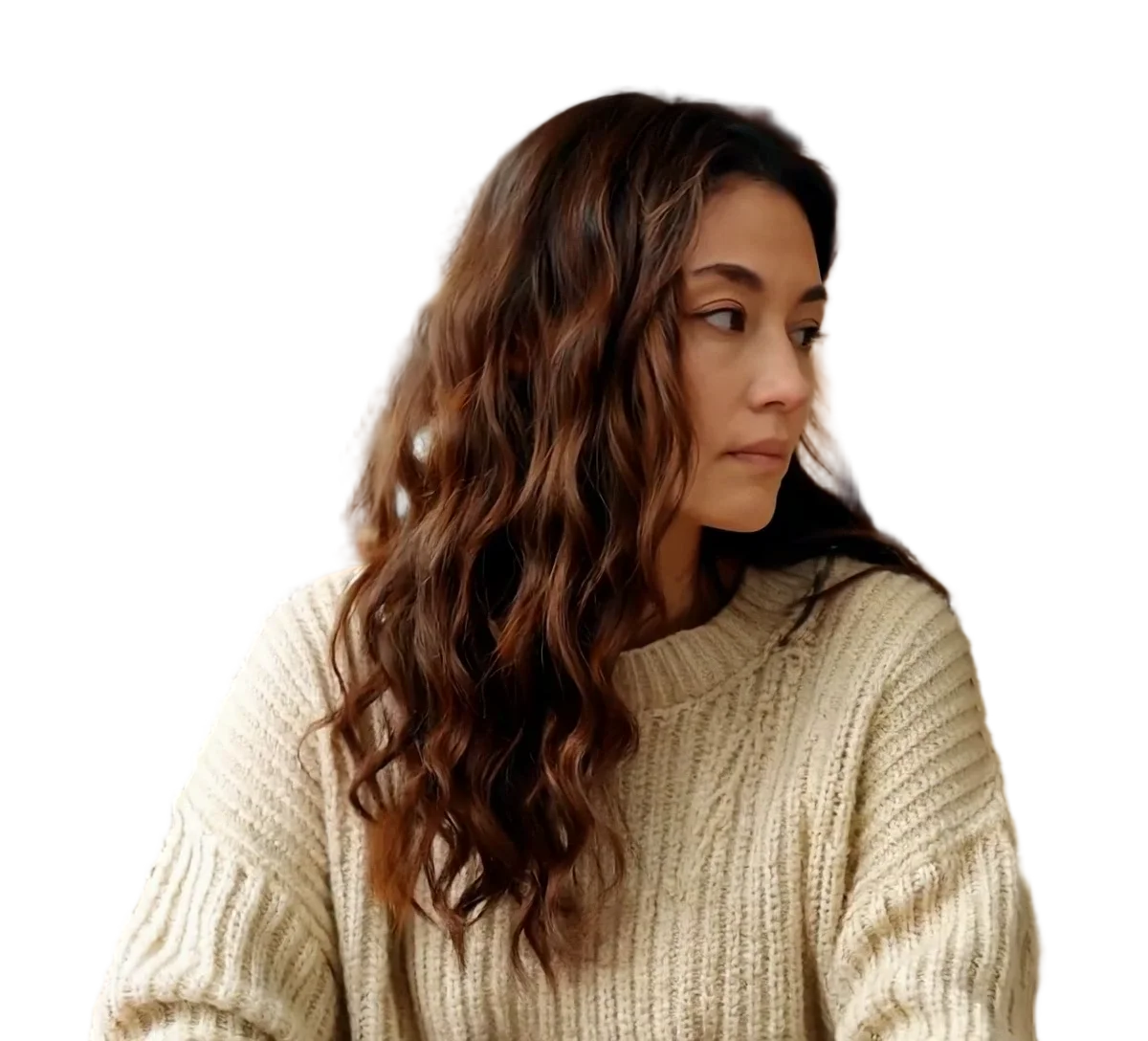
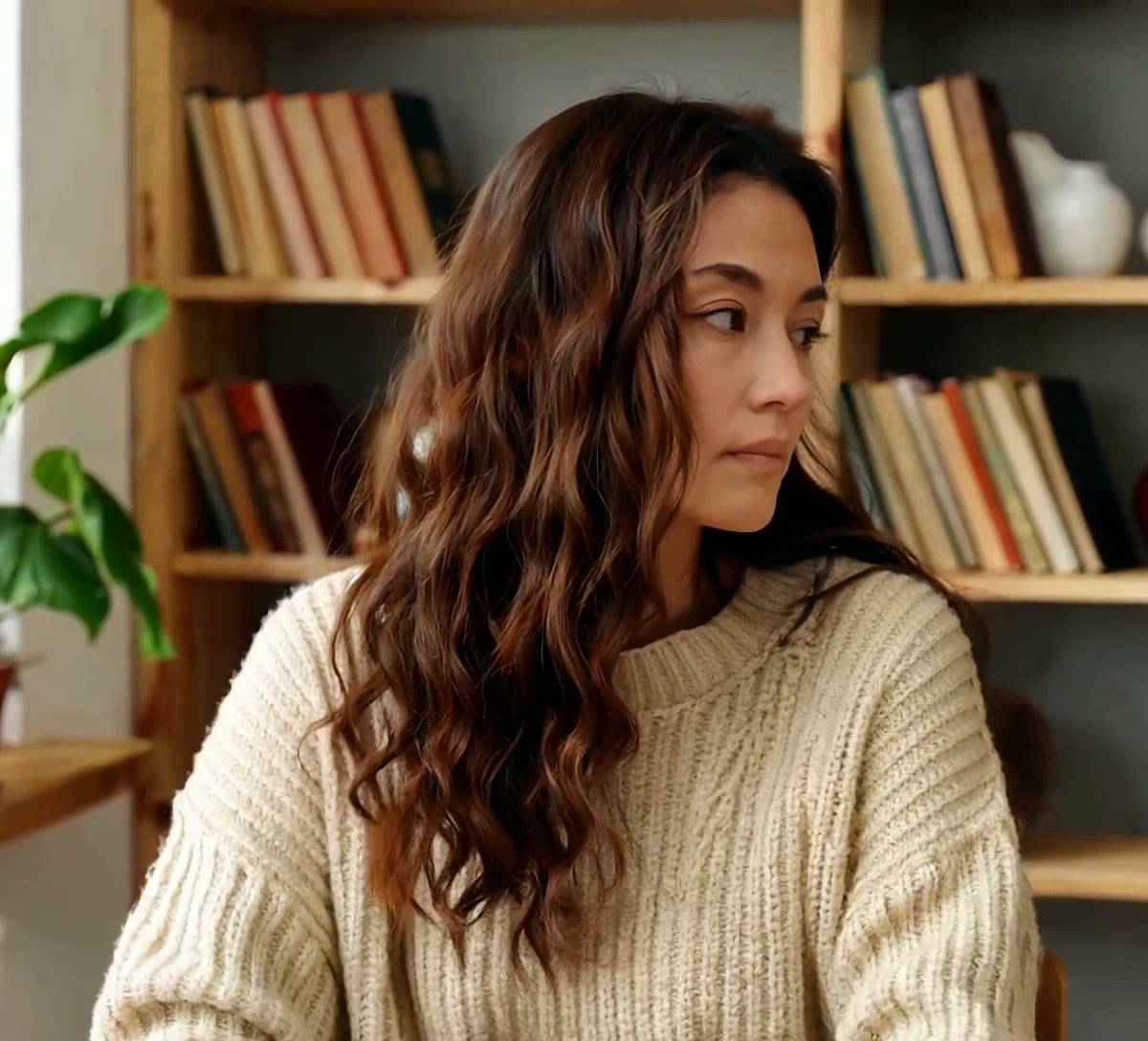
Person
Video model output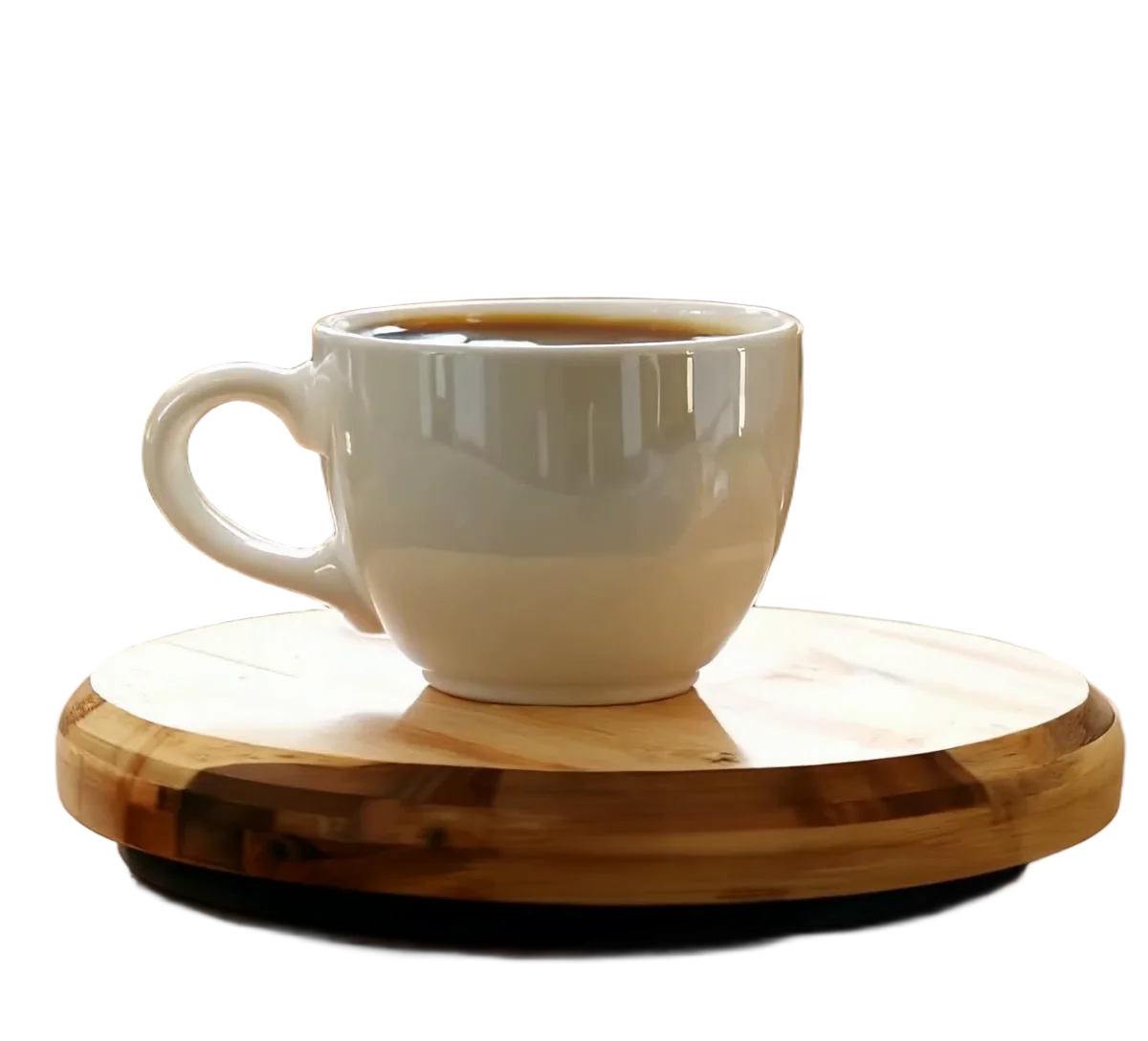

Product
Video model output
Frequently asked questions
Upload a clip of up to 30 seconds, choose People or Objects & pets, set the output to Blur background and pick light, medium or strong. Medium is the default. The download is an H.264 MP4 at your original frame size, frame rate and duration, with the sound kept, and it costs 2 credits per second of video, shown before you start. The free frame preview shows you the strength on your own footage first.
Light is a Gaussian blur with a sigma of 8 pixels, medium 16 and strong 28. On a 1080 pixel wide frame those are roughly 0.7, 1.5 and 2.6 per cent of the width. Light leaves the room recognisable, medium reduces it to shapes and colour, and strong is close to a colour wash. Medium is the default because it hides what is in a room while still reading as a room rather than as a broken video.
Yes. The clip is used twice: once blurred, as the layer underneath, and once untouched, masked to the subject and laid on top. The subject you see is source pixels that were never blurred, not a sharpened version of a blurred frame. Where the cut-out is slightly wrong you get a blurred pixel where a sharp one belonged, which is the least visible way for a matting error to be wrong.
For hiding a room, usually yes, because it forgives the edge. A transparent cut-out puts any mistake against a completely different backdrop, where a stray fringe of your old wall is obvious. A blurred background puts the same mistake against a soft version of itself. Removing the background is the better choice when you genuinely need the subject somewhere else, or need a file with an alpha channel for an editor.
No. One strength is applied to everything the model decides is not the subject, for the whole clip. There is no brush, no region and no keyframing, so you cannot blur a window and leave a bookshelf. If you need that level of control, take the alpha mask with your clip and do the compositing in an editor, where the matte is yours to modify.
Both, unchanged. The sound track is mapped straight from your upload into the MP4, and the frame rate, frame size and duration are the ones you uploaded: our 1080x1920 clip at 30 fps came back 1080x1920 at 30 fps. Nothing is cropped or scaled. The free previews are the exception, processed at up to 720p on the long side, which is what keeps them free.
Run it again at another strength. It is a new job and it is charged again at 2 credits per second, so use the free frame preview to choose: the preview runs the strength you picked, and one frame is enough to tell whether a whiteboard behind you is still readable. Remember that sigma is a pixel count, so a small clip needs a lower strength than the same scene shot at 1080.
You can upload an animated GIF and blur its background, but the download will be an MP4 rather than a GIF. Blur background is one of the video outputs, and the only GIF you can download is the transparent one on remove background from GIF, which is capped at 640 px and 15 fps. For a blurred result the MP4 is the better file anyway, since it keeps your frame size and frame rate.