Remove Background From Video Without Green Screen
Keep the person, lose the room
Filmed against a wall or in a bedroom? Upload the clip as it is and get the person back on transparency.
Three free frame previews a day, no sign-in needed 2 credits per second of video No watermark on paid downloads See pricing
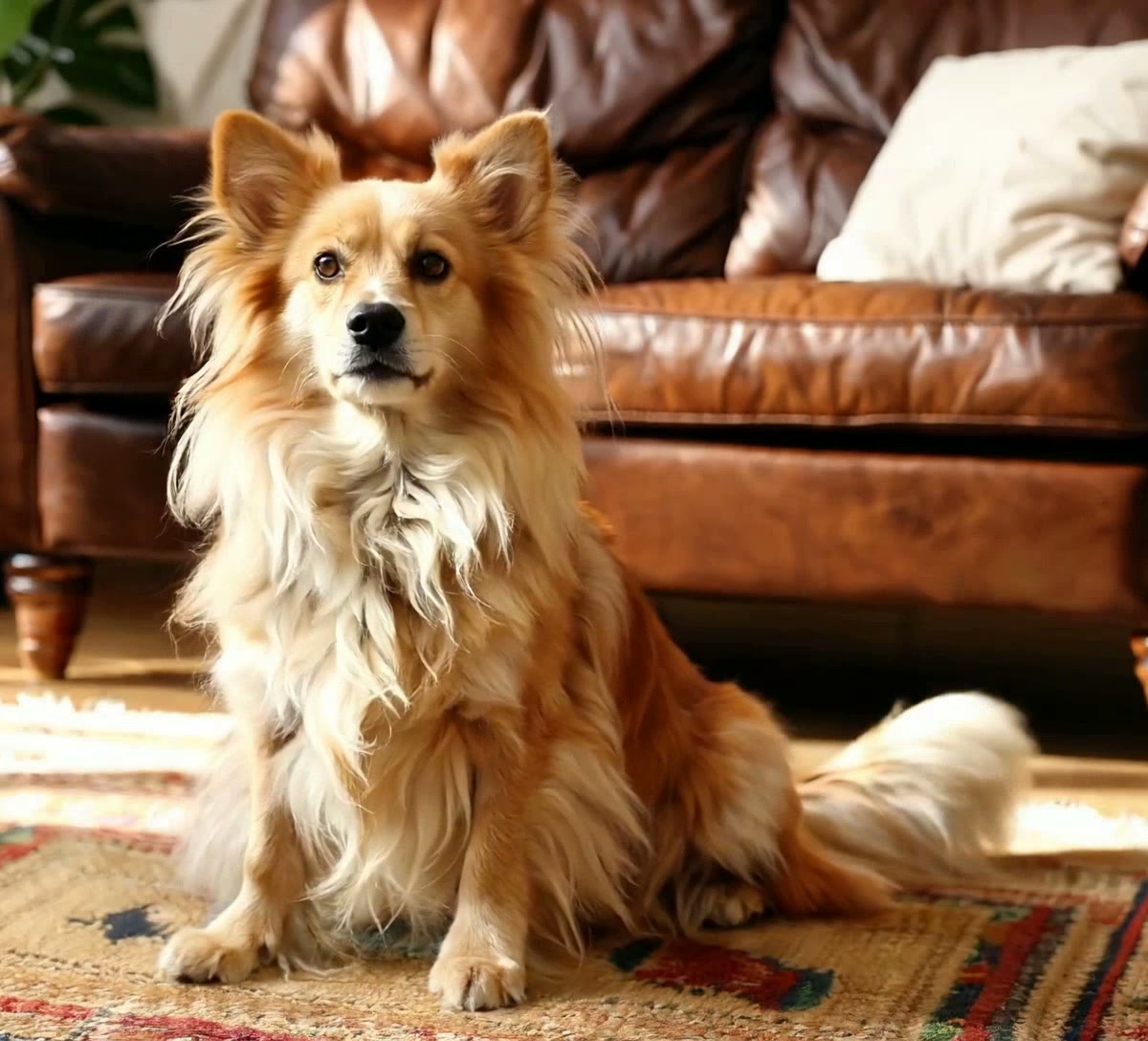
Upload a clip filmed in an ordinary room
Try an example
How to remove background from video without green screen
Upload the clip as it was shot: the model finds the subject on every frame, so there is no colour to key out.
1Upload your clip
Click Upload video or drop an MP4, MOV or WebM up to 30 seconds and 100 MB.
2Choose subject and format
Pick People or Objects & pets and one of four downloads. The credit cost shows before you start.
3Download the result
About 5 minutes for a 30-second clip. You can leave the page while it runs.
Pick the file for where it is going



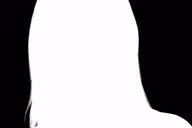
Fur, hair and a room with no backdrop
The original clip and its cut-out play in sync under one divider. Drag it across, then compare the stills below.
AI-generated sample clip. The cut-out is real, unedited output from the People model.
Download this example (WebM with alpha)Still frames


Hair
Free frame previewThe curls keep a pale halo of the room light all the way round, and the plant leaf behind her head left a green smear.
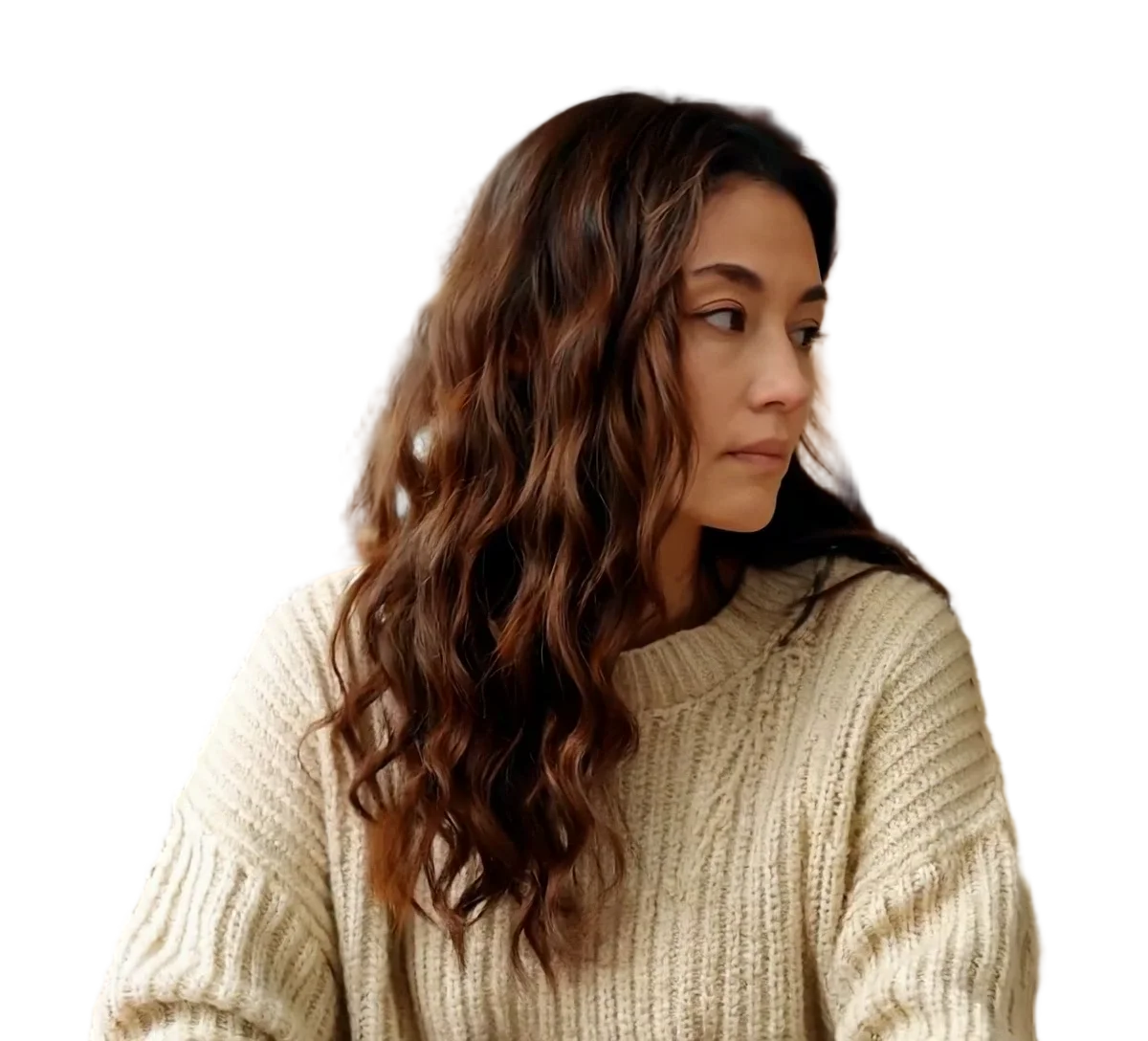
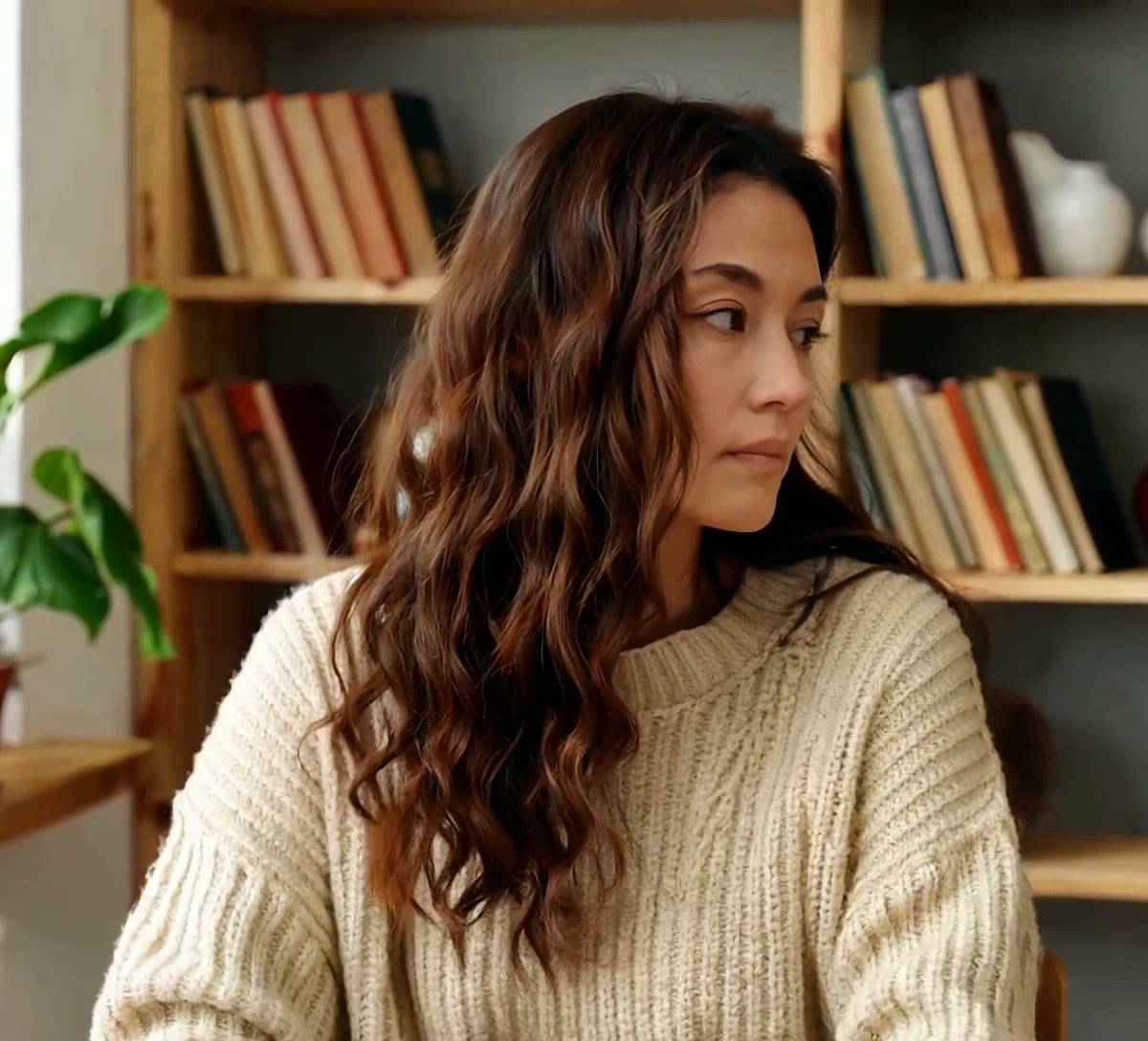
Person
Video model output

Product
Video model output
Footage, edges and the wait, with no backdrop
No backdrop, no keying
A green screen lets an editor delete one colour. Without one, a matting model has to find the subject itself on every frame, so what matters is not the wall behind you but how clearly the subject stands apart from it.
What your footage needs: chroma key or AI matting
Filming guidance, not a benchmark. We have measured one 30-second portrait clip, not each condition below, so run the free 5-second preview on a clip like yours.
Scroll the table sideways to see every column.
| Condition | Chroma key (green screen) | AI matting (this tool) |
|---|---|---|
| Backdrop colour | One even colour that the subject is not wearing | Any backdrop; contrast with the subject helps |
| Lighting | The backdrop needs even light, or shadows key badly | Light the subject so its edges are visible; the backdrop can be uneven |
| Subject wears the backdrop colour | Those areas are removed as well | Not a problem in itself, but a close colour can blur the edge |
| Motion blur | Blurred edges mix with the backdrop colour | Blurred edges are hard to place; steadier movement helps |
| Whole subject in frame | Not required | Helps: a cropped subject gives the model less to go on |
| People or objects overlapping | Fine while they are in front of the backdrop | They may be kept or dropped as one shape; separate them in the shot |
| Moving camera | Fine while the backdrop fills every frame | Fine: each frame is cut from what is in it |
What the matte does with hair, fur and steam
Without a backdrop to key, the edge is whatever the model decides it is. On our own demo clips, shot as ordinary footage, it came out like this:
- Hair and fur outlines are kept, but the finest single strands are softened, and a small gap inside the hair can show the room behind it.
- A thin part moving fast, such as the tip of a wagging tail, can break into dark jagged streaks for those frames.
- Steam, smoke and anything else you see through go with the background.
- A hard shadow under an object can be kept as if it were part of the object.
- A part that turns out of frame can come back partly cut, and a board or stand under a product can be kept in some frames and dropped in others.
None of these need a green screen to fix: the 5-second preview is free, so check a clip shot the way yours will be.
Will the result keep its transparency in my editor
Yes, it exports a ProRes 4444 MOV with an alpha channel. Here is where each transparent file is documented to open.
Scroll the table sideways to see every column.
| Download | Transparency in the file | Chrome and Firefox | Safari | Final Cut Pro | DaVinci Resolve 20 | OBS Studio | Size, 30 s of 1080x1920 |
|---|---|---|---|---|---|---|---|
| ProRes 4444 MOV | Yes | Not checked | Not checked | Apple ProRes, all versions, listed | ProRes 4444 MOV listed | .mov listed as a media file; alpha not checked | About 975 MB |
| Transparent WebM (VP9) | Yes | Plays with transparency | Plays VP9, without transparency | WebM is not in the import list | No WebM container in the list | .webm listed as a media file; alpha not checked | About 23 MB |
Not checked means we found no vendor document for that cell, not that it fails. Premiere Pro, After Effects and CapCut are left out because we could not check them against Adobe or CapCut documentation.
Sources
- Final Cut Pro: Apple Support, Final Cut Pro import formats
- DaVinci Resolve 20: Blackmagic Design, DaVinci Resolve supported codec list, July 2025 (PDF)
- OBS Studio: OBS Studio knowledge base, Media Sources
- Chrome, Firefox and Safari: Jake Archibald, video with transparency on the web (2024)
How long it takes
Processing runs on our servers after the upload, so you can close the page and come back to the finished file.
- Wait for the 30-second clip
- About 5 minutes
- Provider runs: 272 s and 300 s, one per subject mode
- ProRes 4444 MOV
- About 975 MB
- About 260 Mbit/s, alpha channel included
- Transparent WebM
- About 23 MB
- VP9 video with an alpha channel
- Frame size and frame rate
- 1080x1920 at 30 fps
- Unchanged in every download, duration included
File sizes are locally measured, September 2026: the same ffmpeg arguments the container runs, against one 1080x1920 clip at 30 fps, 30 seconds of it unless a tile says otherwise. Wait times are from provider runs. These are what that clip produced, not a figure for yours.
If you already own an editor with a masking tool
Some desktop editors have their own subject masking. If yours does and the clip is already on the timeline, try it there first; there is nothing to upload. This tool is for when you have no such feature, or want the whole clip done without keyframing a mask.
Either way, if the footage was shot on a green backdrop after all, the green screen video page covers that case.
Previews are processed at up to 720p. Paid downloads keep the original frame size. Uploads are deleted after 24 hours, finished downloads after 7 days.
Frequently asked questions
Yes. BiRefNet, the model behind both subject modes, finds the subject in each frame and separates it from whatever is behind it, whether that is a bedroom wall, an office or a street. There is no colour to key out, so no backdrop is needed. What still matters is how clearly the subject stands out; the footage table on this page lists the conditions.
A steady shot, the whole subject in frame, light on the subject's edges, and a background that differs from their clothes and hair. Motion blur is the hardest case, because a blurred edge has no clear line between subject and background. Two people who overlap may be kept or dropped together. Run the free 5-second preview on a clip like yours before you process the full length.
Yes. Choose ProRes 4444 MOV as the output and the transparency is stored in the file as an alpha channel. Apple's Final Cut Pro import list includes Apple ProRes in all versions, and Blackmagic's DaVinci Resolve 20 codec list includes ProRes 4444 MOV. Expect a large file: our 30-second 1080x1920 test came out at about 975 MB. More about the MOV.
Yes. Switch Subject to Objects & pets, which runs the general version of BiRefNet instead of the one tuned for people. The price is the same 2 credits per second, and the formats are the same. The free 5-second preview uses the version for the mode you pick, so it shows how your product or pet will come out.
Yes. The model is not a colour key, so a green backdrop is handled like any other background, and creases or uneven light on it do not need fixing first. We have not tested how green light reflected onto skin and hair comes out, so check the 5-second preview. If your editor needs a green backdrop again, see green screen MP4.
No. The clip is uploaded and processed from the browser, and you download a finished file, so no editor or plugin is needed for the cut itself. You will still want an editor to place the result over a new background, unless it goes straight onto a web page as a transparent WebM.
About 5 minutes for a 30-second clip. In our test, one 30-second 1080x1920 clip took 272 seconds in one subject mode and 300 seconds in the other, from submitting to a finished file. You do not have to keep the page open while it runs: the result appears in your dashboard when it is done.
No. It works on video files you upload, not on a live camera feed, and each clip takes minutes rather than a fraction of a second. For a stream, record the segment first, remove the background here, and add the finished transparent file to your streaming software as a media source.